
As much as retrieving geometry might seem simple in Revit, it is often tricky due to different scenarios.
The typical approach to retrieving geometry from a standard Revit element that contains native Revit geometry is as follows:
private List<Solid> GetElementSolids(Element element, Options options)
{
    var elementSolids = new List<Solid>();

    var geometryElement = element.get_Geometry(options);

    foreach (var geometryObject in geometryElement)
    {
        if (geometryObject is GeometryInstance geometryInstance)
        {
            var instanceGeometry = geometryInstance.GetInstanceGeometry();

            foreach (var instanceGeometryObject in instanceGeometry)
            {
                if (instanceGeometryObject is Solid { Volume: > 0 } solid)
                {
                    elementSolids.Add(solid);
                }
            }
        }
        else if (geometryObject is Solid { Volume: > 0 } solid)
        {
            elementSolids.Add(solid);
        }
    }

    return elementSolids;
}
However, this method does not work for all Revit elements. In particular, when dealing with families that contain shared nested components, additional handling is required.
1. Geometry of Elements with Shared Nested Families
If a family includes even a single shared nested family, its geometry might not be fully retrieved using the standard approach described above. To obtain the complete geometry of such an element, you need to account for its method GetSubComponentIds() and iterate through the corresponding subcomponents. When a family consists only of shared nested families, the main FamilyInstance often has no geometry of its own. Calling get_Geometry() in this case may return an empty or incomplete result. To correctly retrieve the geometry, you must iterate through its subcomponents and collect their individual geometries.
var subComponentIds = familyInstance.GetSubComponentIds();

foreach (var subComponentId in subComponentIds)
{
  if (document.GetElement(subComponentId) is not
      FamilyInstance nestedSharedFamilyInstance) continue;

  var solids = this.GetFamilyInstanceSolids(nestedSharedFamilyInstance, new Options());

  //do something with the solids
}
2. Geometry of Detail Items
Detail items behave differently. Their geometry typically consists of lines and zero-volume solids containing a single planar face. In most cases, you need to analyze the lines, polylines, and faces:
foreach (var geometryObject in geometryElement)
{
    if (geometryObject is GeometryInstance geometryInstance)
    {
        var instanceGeometry = geometryInstance.GetInstanceGeometry();

        foreach (var instanceObject in instanceGeometry)
        {
            if (instanceObject is Solid { Faces: not null } solid)
            {
                foreach (var face in solid.Faces)
                {
                    // Process each face as needed
                }
            }
            else if (instanceObject is Curve curve)
            {
                // Process each curve as needed
            }
            else if (instanceObject is PolyLine polyLine)
            {
              // Process polyLine as needed
            }
        }
    }
}
3. Geometry of Elements that contain Light Source
Some families, like lighting fixtures, include internal solids that are not real geometry. You can skip them by checking the GraphicsStyleId:
var graphicStyleId = geometryObject.GraphicsStyleId;

if (graphicStyleId != ElementId.InvalidElementId)
{
    var graphicStyleName = document.GetElement(graphicStyleId)?.Name ?? string.Empty;

    if (graphicStyleName == "Light Source")
    {
        //handle light source geometry as needed
    }
}
4. Revit Non-Native Geometry
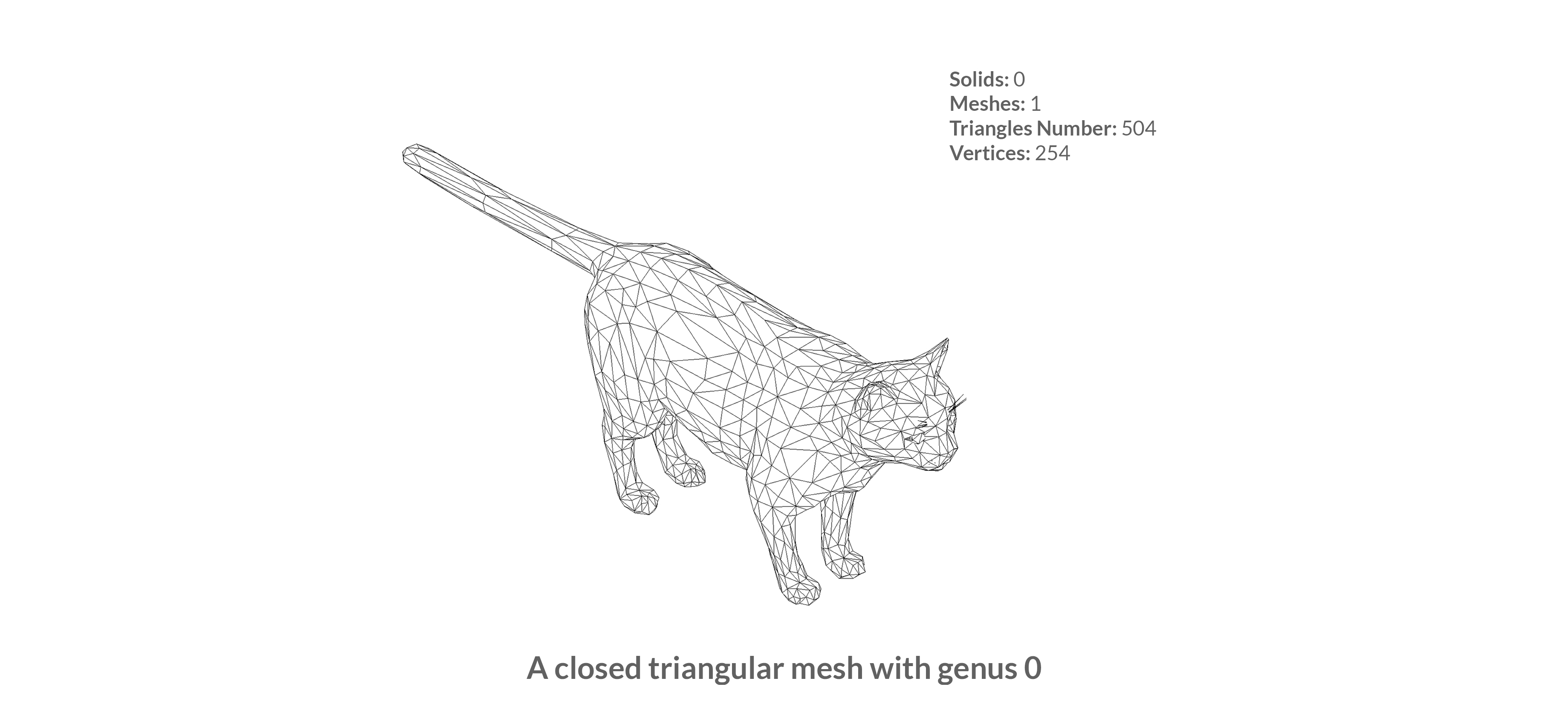
Some elements in a project for example, imported 3D models might not contain Revit-native solid geometry. When get_Geometry() is called, Revit might return meshes. To handle these elements, iterate through the GeometryObject() items, identify Mesh instances, and extract their vertices for further analysis.
foreach (var geometryObject in geometryElement)
{
    if (geometryObject is GeometryInstance geometryInstance)
    {
        var instanceGeometry = geometryInstance.GetInstanceGeometry();

        foreach (var instanceObject in instanceGeometry)
        {
            if (instanceObject is Mesh mesh)
            {
                var vertices = mesh.Vertices;

                // Process vertices as needed
            }
        }
    }
    else if (geometryObject is Mesh mesh)
    {
        var vertices = mesh.Vertices;

        // Process vertices as needed
    }
}
5. Geometry of Linked Elements
Elements coming from linked Revit models behave differently. You get geometry without automatically applying the transform of the Revit link. To access their geometry:
if (element is RevitLinkInstance revitLinkInstance &&
    revitLinkInstance.GetLinkDocument() is { } linkedDocument &&
    linkedDocument.GetElement(linkedElementId) is { } linkedElement)
{
    var geometryElement = linkedElement.get_Geometry(options);

    var elementSolids = this.GetElementSolids(linkedElement);

    var linkTransform = revitLinkInstance.GetTotalTransform();

    foreach (var solid in elementSolids)
    {
        var transformedSolid = SolidUtils.CreateTransformed(solid, linkTransform);

        // Process transformedSolid as needed
    }
}
6. Using Options When Getting Geometry
- The
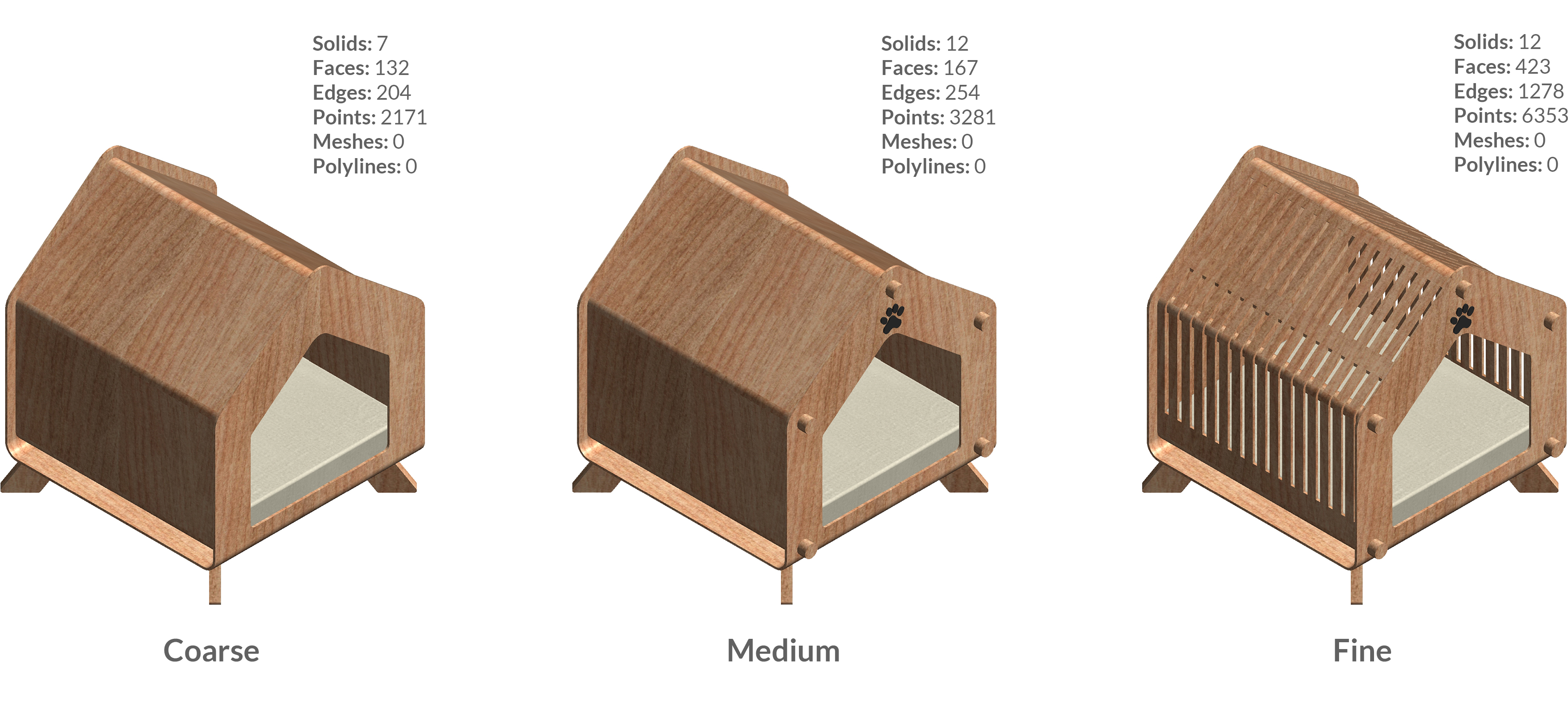
Optionsobject defines how Revit generates and returns geometry. It allows you to control factors such as reference computation, detail level, and visibility. For instance, settingComputeReferences= true enables you to create dimensions from the retrieved geometry, whileIncludeNonVisibleObjects= true lets you access geometry that is hidden in the current view. TheDetailLevelproperty determines how detailed the geometry appears (Coarse, Medium, or Fine). Alternatively, instead of manually specifying the detail level, you can assign aViewto theOptionsobject, and Revit will then automatically use the detail level defined in that view. -
The image below illustrates how the same family’s geometry changes across different detail levels, highlighting the effect of the
DetailLevelsetting on the retrieved geometry.
7. Retrieve specific faces of host elements
The Revit API provides straightforward methods to extract specific faces such as side, bottom, and top faces from host elements. For example, retrieving the interior face of a wall can be done as follows:
var interiorFaceReference = HostObjectUtils.GetSideFaces(wall,
                                ShellLayerType.Interior)?.FirstOrDefault();

var interiorFace = wall.GetGeometryObjectFromReference(interiorFaceReference);
8. Using ExporterIFCUtils
Although the main purpose of the IFCExporterUtils class is not geometry retrieval, it can still be useful for geometry analysis. One of its methods, AreSolidsEqual, can be used to check whether two solids are identical, taking into account their transformation differences, without the need to compare their volumes, face counts, edges, and so on.
9. Visualizing Retrieved Geometry
To inspect obtained geometry, it can be visualized using the DirectShape class:
using var transaction = new Transaction(document, "Visualize Geometry");

transaction.Start();

var elementSolids = this.GetElementSolids(element);

var directShapeGeometryObjects = new List<GeometryObject>(elementSolids);

var directShape = DirectShape.CreateElement(document,
                    new ElementId(BuiltInCategory.OST_GenericModel));

directShape.SetShape(directShapeGeometryObjects);

transaction.Commit();
Wrapping Up
Working with geometry in Revit API is never one-size-fits-all. Understanding the nuances of regular elements, nested/shared families, detail items, light sources, and linked elements will save you hours of debugging and help you extract accurate geometry.